



Workflows
Run step-by-step jobs, watch them live, review their results, and read the logs.
A workflow is a job that runs in the background, step by step - for example: import the new price list, show me a summary of what would change, and apply it after I approve. Workflows exist so that risky or repetitive jobs happen in a controlled way, with a person in the loop where it matters.
This page walks through everything you'll meet: the list of workflows, a workflow's own page, and what happens during a run - inputs, live progress, reviews, and logs.
The list of workflows
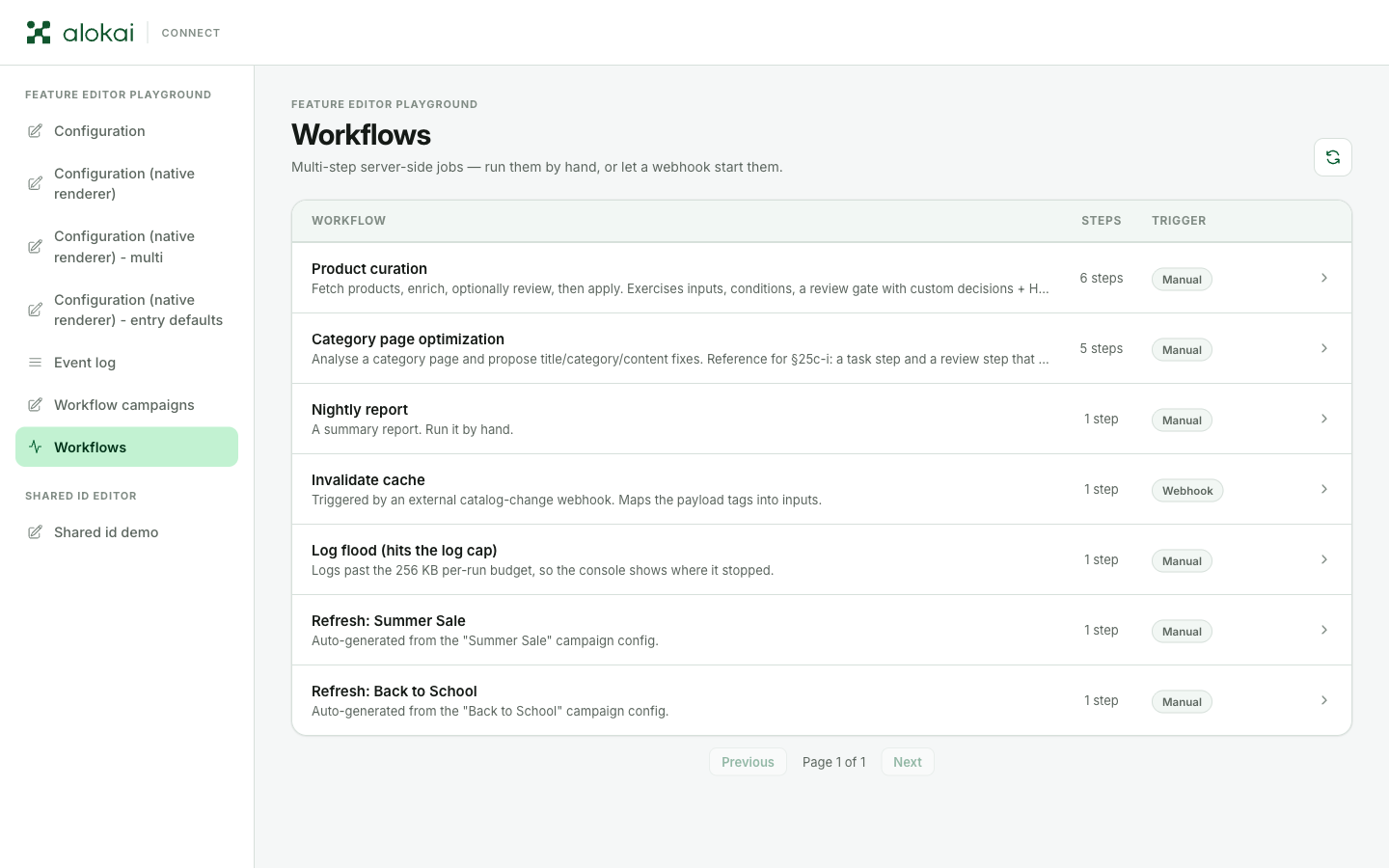
The workflows screen is a catalog of the jobs your developers set up. Each row shows the workflow's name with a short description, how many steps it has, and how it starts: Manual means a person clicks a button, Webhook means another system triggers it.
There's nothing to configure here - the only control is the Refresh button in the top corner, which fetches the current list. Long lists are split into pages of ten; move between them with Previous and Next at the bottom.
Click a row to open that workflow's own page - that's where everything else on this page happens.
Inside a workflow
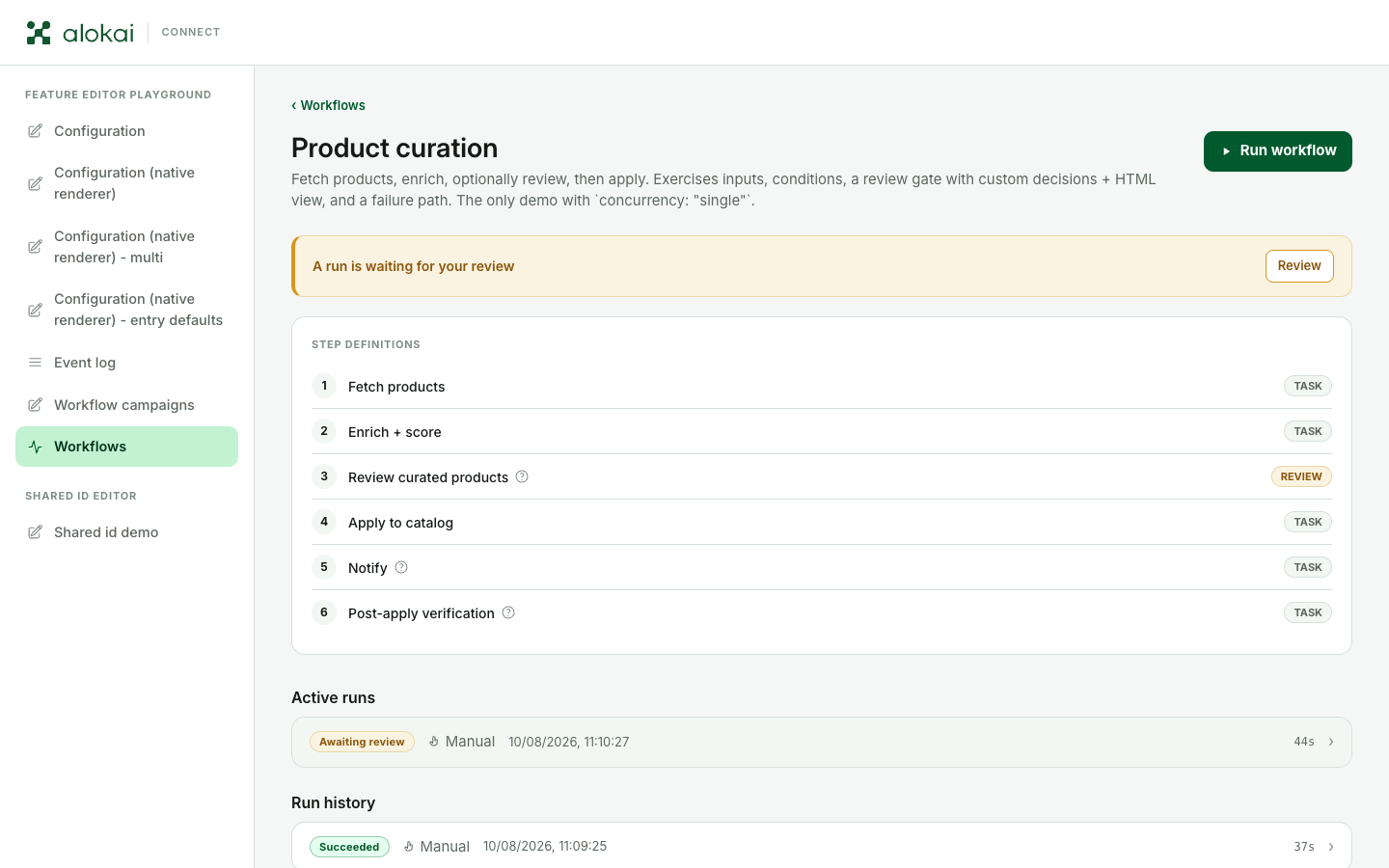
A workflow's page has three areas, top to bottom:
- The header - the workflow's name and description, and the Run workflow button.
- Step definitions - the plan of the job: every step in order, each tagged task (runs by itself) or review (pauses and waits for a person). A small ? next to a step means it may be skipped depending on what earlier steps found.
- The runs - two separate sections:
- Active runs holds runs that started but haven't finished: waiting for their turn, running right now, or paused for a review.
- Run history holds finished runs, newest first, in pages of ten.
Each run row shows its status, how it started (Manual or Webhook), when it started, and how long it took - click the row to open the run and see the details, including who started it.
When a run is paused waiting for someone's decision, the page tells you loudly: a yellow banner reading A run is waiting for your review, with a Review button that takes you straight there.
The run history is not an archive
The panel keeps a limited number of recent runs, and everything disappears after about a week. If you need a record of a run for later, download its output or its log while it's still listed.
What the statuses mean
Every run has a status. Here's the full list, in plain words:
| Status | In plain words |
|---|---|
| Queued | Waiting for its turn to start. |
| Running | Working right now. |
| Awaiting review | Paused - it needs a person to decide. |
| Succeeded | Finished, all steps done. |
| Failed | A step went wrong. The log says which one and why. |
| Rejected | A reviewer chose to stop it. That was a decision, not an error. |
| Cancelled | Someone stopped it by hand. |
| Expired | The review waited too long (a day), or someone started a fresh run of a workflow that only allows one run at a time while this one was still waiting. |
| Interrupted | The system restarted while it ran. Not your fault - run it again. |
| Skipped | An outside system tried to start the workflow while an earlier run was still busy. (If you click Run workflow in that situation, you just get a message that a run is already in progress.) |
Two of these involve waiting, and both waits are bounded: a run sits Queued only until a slot frees up - usually moments - and Awaiting review waits at most 24 hours for a decision.
Running a workflow
Click Run workflow. If the workflow needs nothing from you, the run starts immediately and opens on the right so you can watch it. If it needs information first, a form appears - that's the next section.
Some workflows only allow one run at a time. While one is going, the Run workflow button is disabled and a note under it says a run is already in progress - click the note to open that run. And if the running one is paused at a review, the panel asks you first: starting a new run ends the waiting one, and its review can no longer be decided (it closes as Expired).
Workflows do not run on a schedule
There is no "run every night" option anywhere in the panel. A workflow starts when someone clicks Run workflow - or when another system your developers connected triggers it. If you need a job to happen on a timer, ask your developers to set that up.
When a workflow asks for inputs
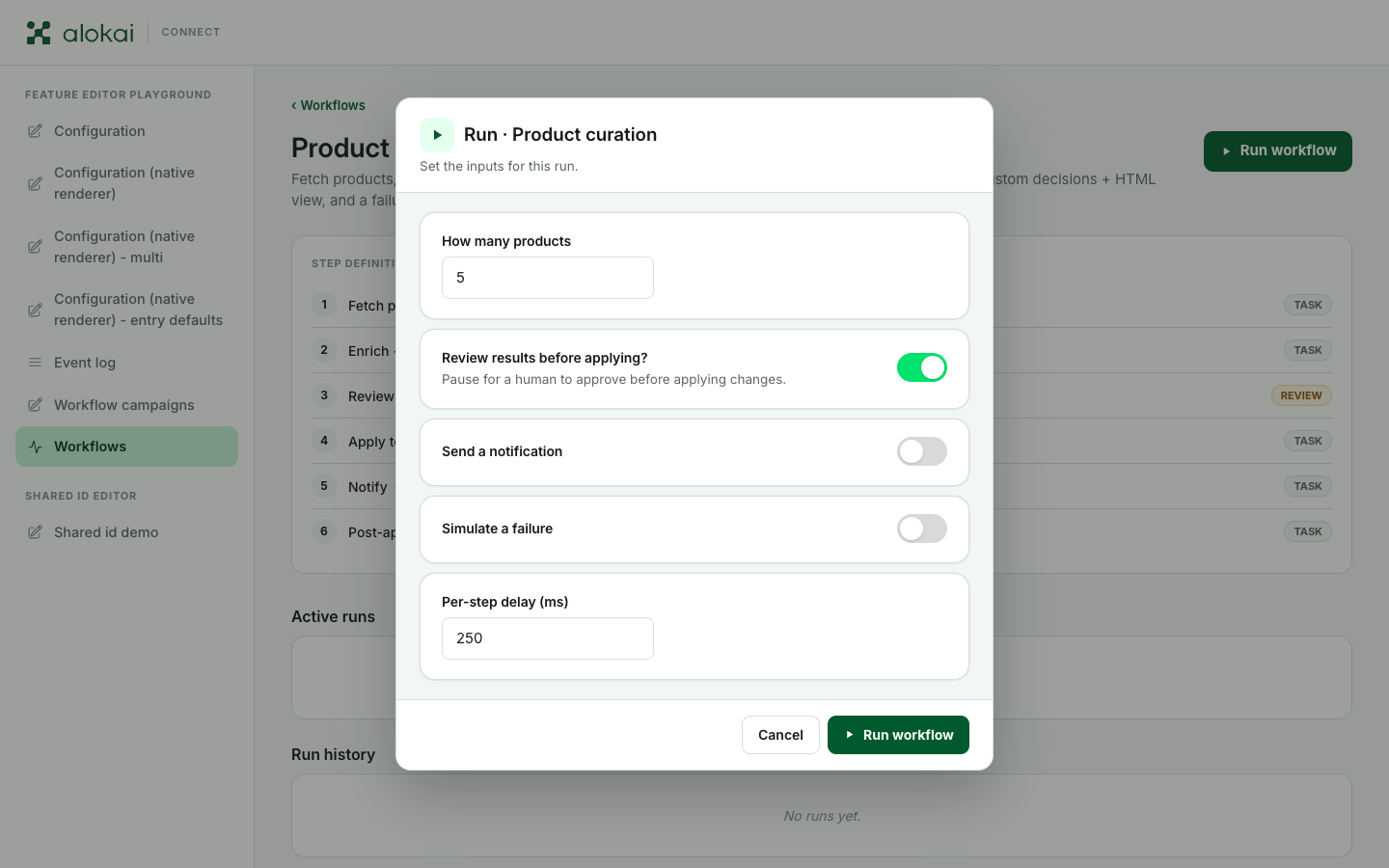
Some workflows want a few answers before they start - how many items to process, whether to pause for a review, and so on. For those, clicking Run workflow first opens a form titled Run · (the workflow's name). The fields work exactly like the ones on form screens.
Fill it in and click Run workflow to start, or Cancel to back out. If a required field is empty, the form tells you which one and doesn't start anything. If the start is refused - for example another run got in first - the form shows the reason and keeps everything you typed, so you can try again without re-entering it.
Watching a run: the steps
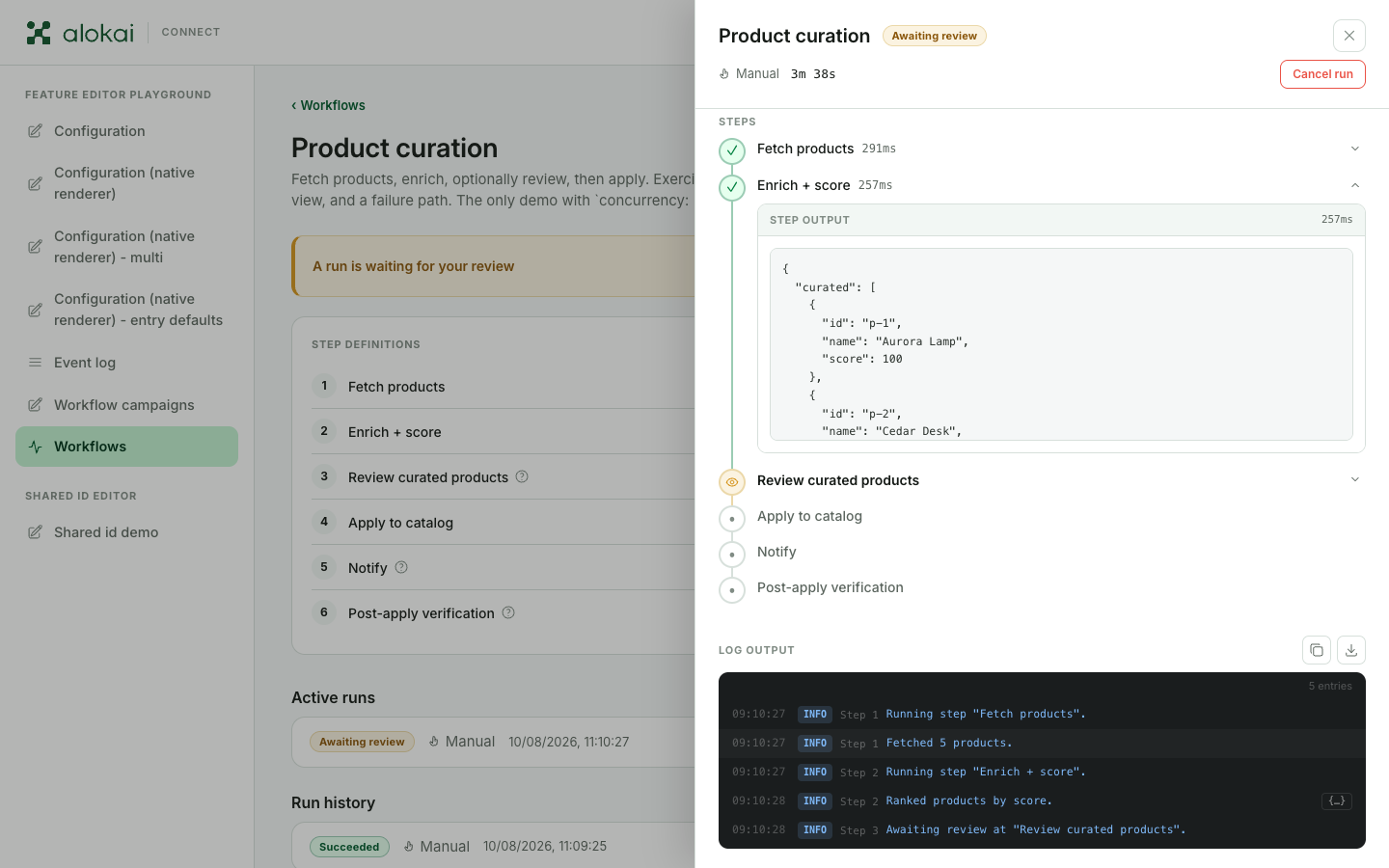
A run opens in a panel on the right, and it's live - while the run works, the panel refreshes every second. Every run also has its own web address, so you can send a colleague a link to the exact run you're looking at.
At the top you'll find the run's status, how long it has been going, who started it, and a Cancel run button that stops an unfinished run (after asking you to confirm).
Below that is the list of steps. The icons tell the story at a glance: a green check is a finished step, a spinning ring is the one working right now, a plain dot hasn't started yet, a dash is a step that was skipped, a red cross failed, and an eye means the step is waiting for someone's review.
A finished step has more to give: unfold it and a Step output panel shows what the step produced. Depending on how your developers built the step, the output appears as a readable preview, as raw data, or both with a switch between them. If the result is large, a Download full result link saves the whole thing as a file. A failed step unfolds the same way, showing an Error panel with what went wrong.
When a run asks for your review
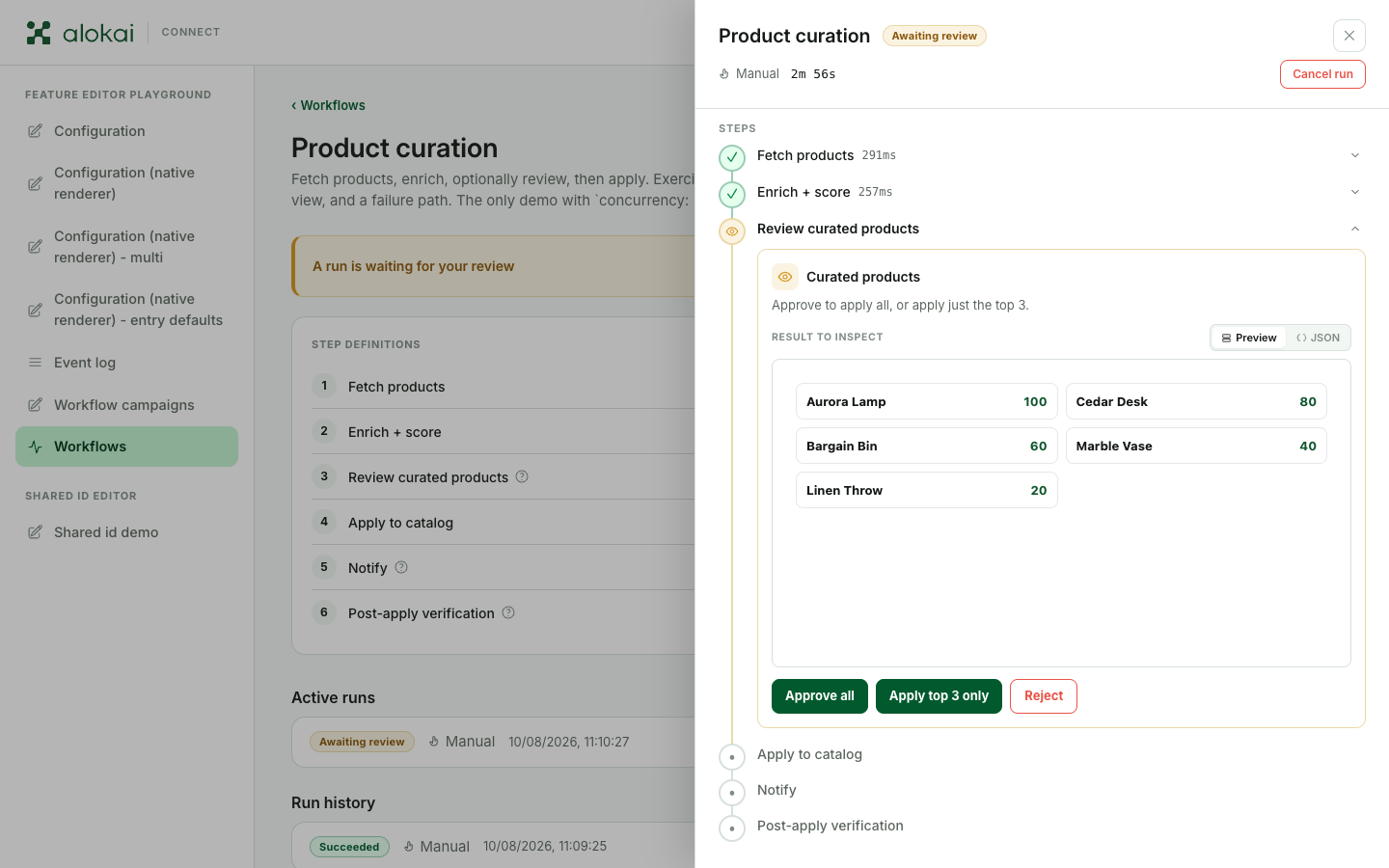
Some workflows pause in the middle and wait for a person. The waiting step unfolds into a highlighted box right in the step list: a title, a short summary, and a Result to inspect - the thing the workflow prepared and wants you to look at before it continues.
What you see there is up to your developers. They can present the result as a readable preview - a table, a list of cards, whatever fits the job - as raw data in JSON form (a structured text format developers use), or both, with a Preview / JSON switch between the two. When both exist, the preview is what opens first, because it's the one meant for you.
The buttons underneath are also defined by your developers. The plain default is Approve and Reject, but a workflow can offer any set of decisions - our example above has three. A decision with consequences asks you to confirm before it acts. Two things always hold:
- Rejecting is a normal outcome, not a failure. It simply ends the run, and nothing the workflow prepared is applied.
- A review doesn't wait forever. If nobody decides within 24 hours, the buttons are replaced by a note and the run closes as Expired - the workflow then has to be started again from the beginning.
Once you decide, the box closes and the run moves on within a second - either continuing with the remaining steps, or stopping as Rejected.
The run log
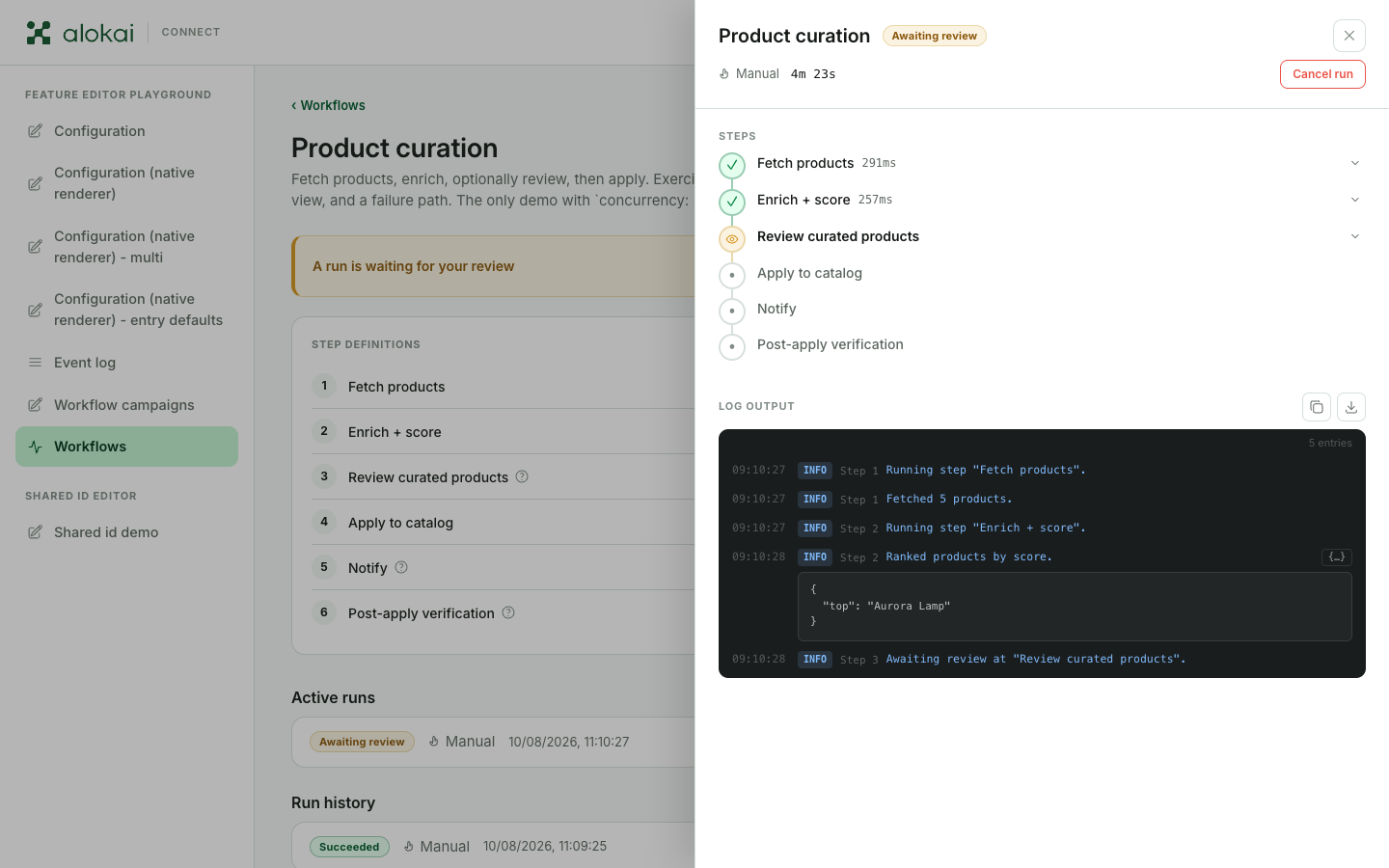
At the bottom of every run sits Log output - the run's diary. Each line carries the time, a colored tag for how serious it is (blue for information, yellow for warnings, red for errors), which step wrote it, and the message. Some lines carry extra data with them - click the small {…} button on the line to unfold it.
While a run is working, the log follows the newest lines on its own. Scroll up to read something older and it politely stops following - a Resume following button brings you back to the live end.
The Copy and Download buttons in the corner take the whole log with you - handy when you want to send it to your developers. One limit to know about: a very chatty run can fill up its log budget. When that happens the console marks the point where the log stopped, and later lines aren't kept - the run itself keeps working normally.